Order with Confidence Every Time
Mistakes happen. Maybe you picked the wrong coffee shop. Maybe you changed plans and need a different location. If you’re using the Savor Live app, the good news is that you can change your pickup location, but timing matters.
Here’s a clear breakdown of what you can do, when you can do it, and what steps to follow.
Short Answer: Can You Change Your Pickup Location? Yes, you can change your pickup location in the app as long as you have not completed your order.
Once your order has been placed and payment has been accepted, you’ll need to call the coffee shop directly to make any changes.
How to Change Your Pickup Location Before Checkout
If you notice the wrong location before finishing your order, follow these steps:
Select your drink
Choose your coffee and add any special modifiers. This could include milk type, sweetness level, or extra shots. You can also add comments for the coffee shop if needed.Add the item to your cart
After selecting your drink, it will be added to your cart automatically.Open your cart
Tap the Cart icon in the upper right corner of your screen.Change the store location
At the top of the screen, you’ll see the store address with a drop-down arrow next to it.Tap the drop-down arrow
Select “Change Location”
Choose the correct coffee shop
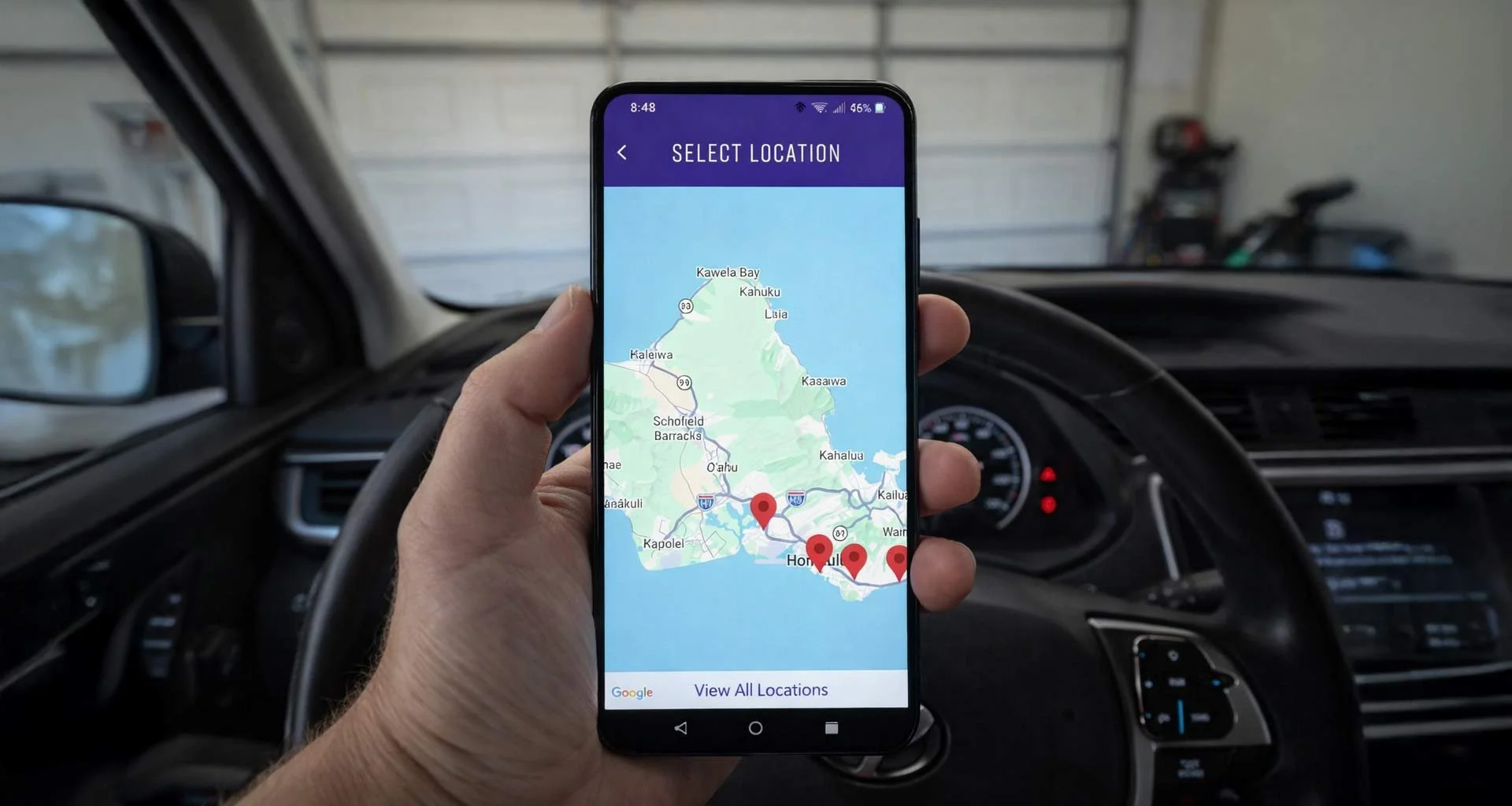
You’ll be taken to a map that shows all available coffee shop locations.Select the location you want
Return to your cart
Complete checkout
That’s it. As long as you haven’t finished the order, switching locations is quick and simple.
What If the Order Is Already Completed?
If you have already checked out and payment has been accepted, you can’t change the location in the app.
Instead, you will need to call the coffee shop directly and speak with them about your order. They can let you know what options are available.
More Frequently Asked Questions
How can a customer cancel an order after it has been placed?
Once payment has been accepted, cancellations must be handled by the coffee shop. Customers need to call the store directly to request a cancellation.
How does a customer remove an unwanted item from the cart?
If you added something by mistake, you can remove it before checkout.
Here’s how:
Go to your Cart
Slide the item to the left
Tap the Garbage icon to remove it
You also have the option to:
Save the item as a favorite
Leave a comment for the coffee shop
This makes it easy to adjust your order before you finalize it.
Helpful Tips to Remember
Always double-check the pickup location before checkout.
Make changes before completing your order whenever possible.
Once payment is accepted, call the coffee shop for any updates.
The earlier you catch a mistake, the easier it is to fix.