
From Free Trial to Branded App
Lock In Your Look, Get Ready To Go Live
You started your 7-day free trial. Now give your app a look that matches your brand. In the dashboard, you can set colors, upload home screen tile images, and finish your splash screen and badge. Follow the simple steps below, and you will have a polished, on-brand app ready for review.
Step-by-Step Setup
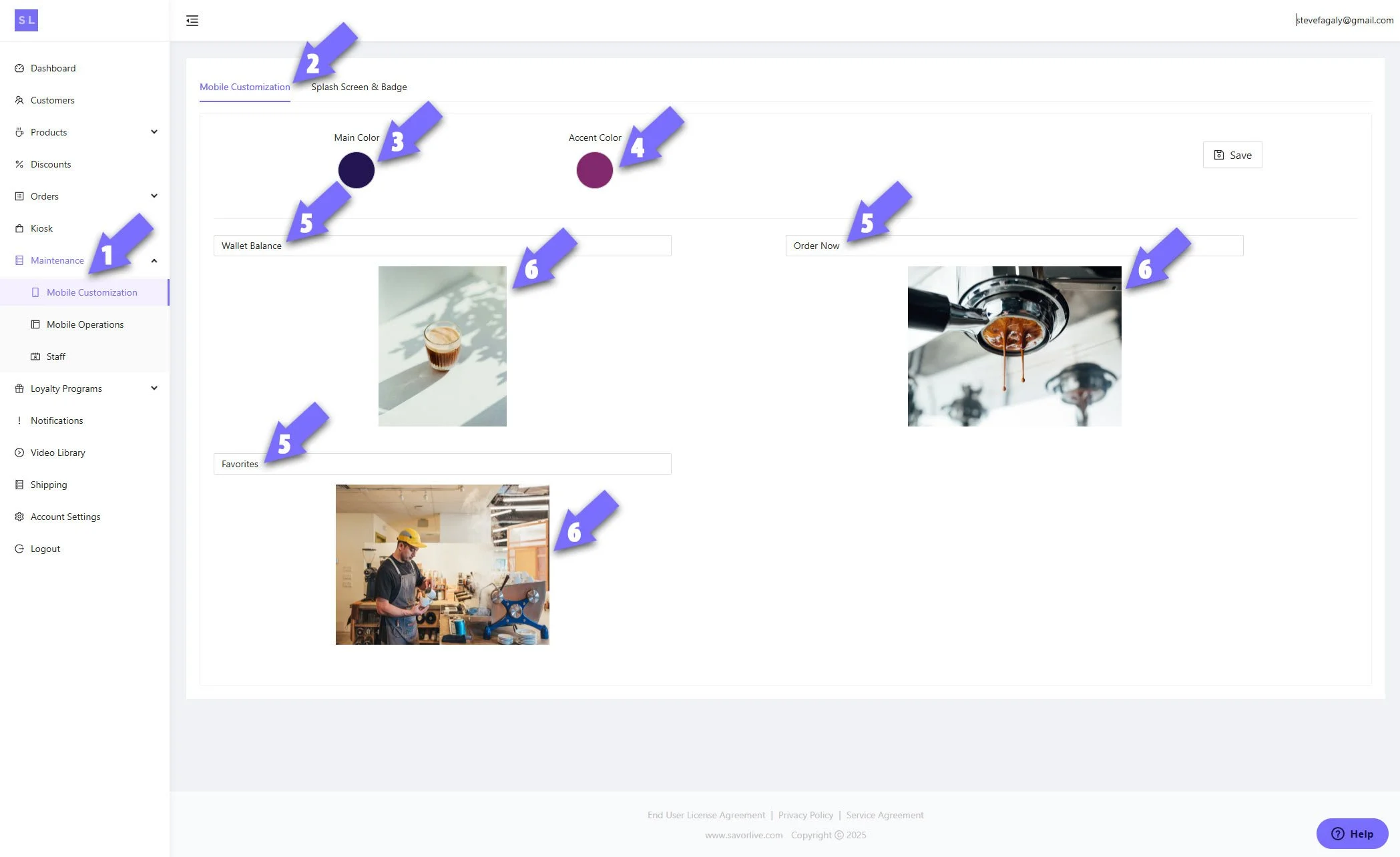
1) Open Mobile Customization
From the left menu, choose Maintenance ➡️ Mobile Customization.
2) Confirm the correct tab
You should be on the Mobile Customization tab at the top, showing Splash Screen & Badge to the right.
3) Pick your Main Color
Click the Main Color swatch. Enter your HEX value. This sets the core look.
4) Pick your Accent Color
Click the Accent Color swatch. Enter your brand’s secondary HEX value. This highlights buttons and badges.
5) Name your home tiles
Use three clear sections for your home screen. Common examples: Wallet Balance, Order Now, Favorites. These fields are hardcoded howevery, you can rename E-Wallet, Menu, My Favorites, for example.
6) Add your three home images
Upload the graphics for those tiles, preferably jpg or png. Size each to 640 x 480 px so they look crisp.
Set Colors, Images, and Icons Fast
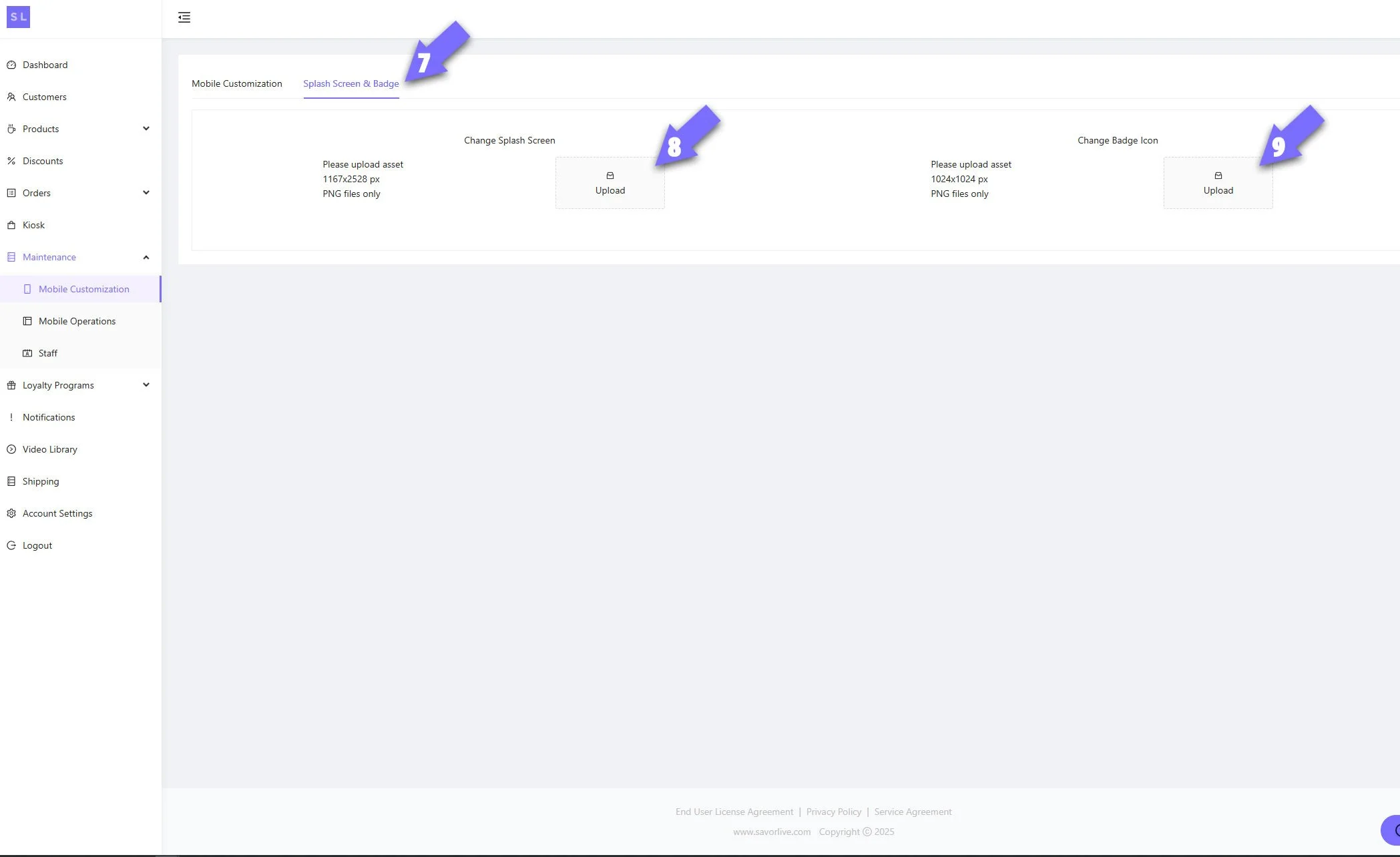
7) Switch to Splash Screen & Badge
Click the Splash Screen & Badge tab to finish launch visuals.
8) Upload your splash screen
Add a PNG sized 1167 x 2528 px. This is the full screen image shown when the app opens. *Changes here will take 2-3 days pending approval from the app stores.
9) Upload your badge icon
Add a square PNG sized 1024 x 1024 px. Keep it simple so it looks sharp on mobile phones. *Changes here will take 2-3 days pending approval from the app stores.
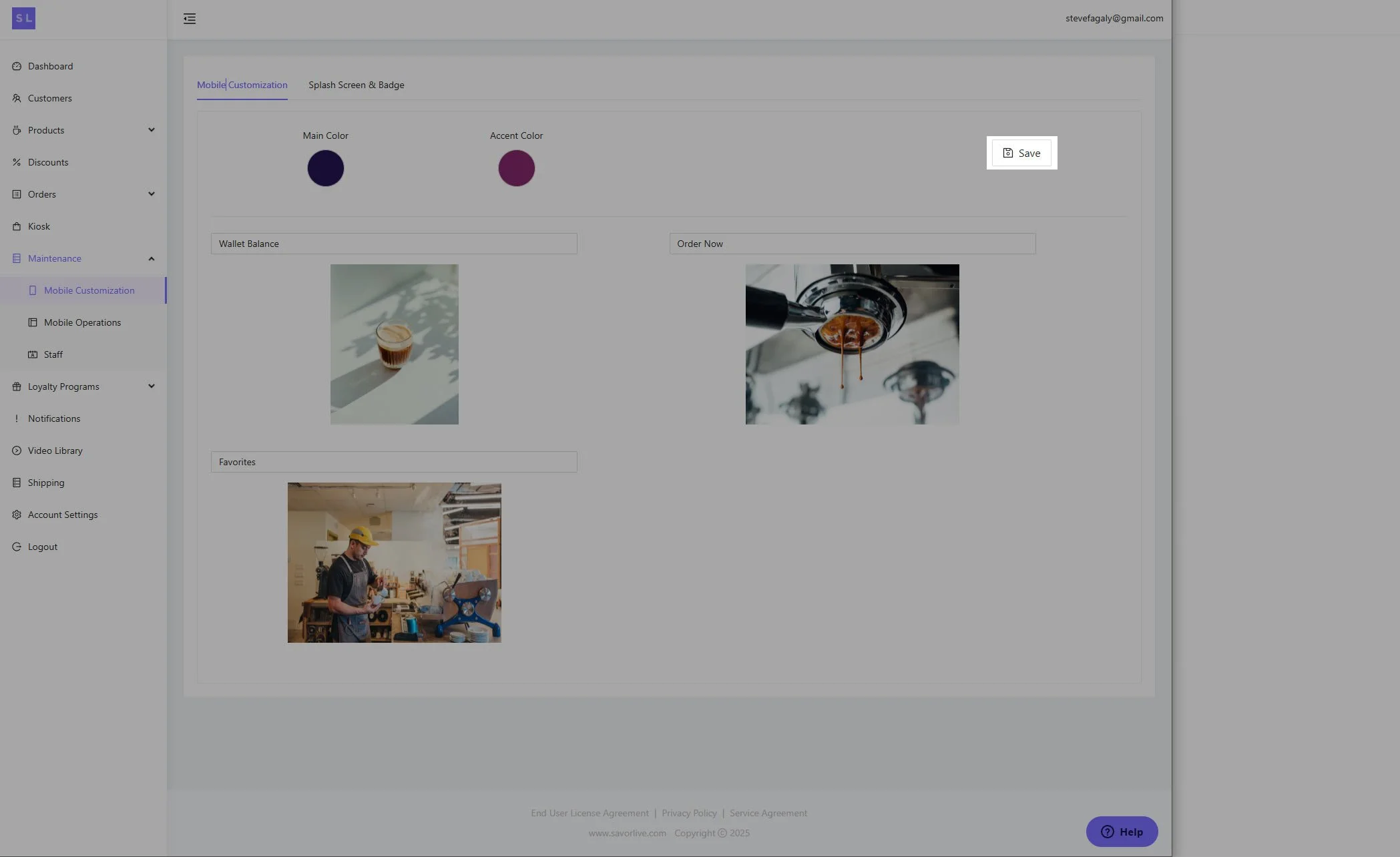
10) Save your work
Return to Mobile Customization and click Save. That locks in your brand settings.
What Happens After You Save
Our team prepares a TestFlight build so you can preview your beta app on your phone. Please allow up to 24 hours for your invite.
Pro Tips
Use high contrast between Main and Accent colors, ensuring text is not drowned out by home screen images
Keep tile images clean with minimal text
Center logos on the splash screen and leave safe margins
Test your badge at small sizes to ensure it reads well
Common Fixes
Tile looks fuzzy - reexport at 640 x 480 px
Colors feel off - confirm the exact Hex from your brand guide
Icon crops on the edges - add padding around the logo before upload
Next Guides In This Series
Next up, we will cover:
Setting your location and hours
Creating your first product
Adding images, fulfillment, and modifiers
Getting ready to process payments