
Two Modes, One Screen: Cashier and Self-Order That Crush the Rush
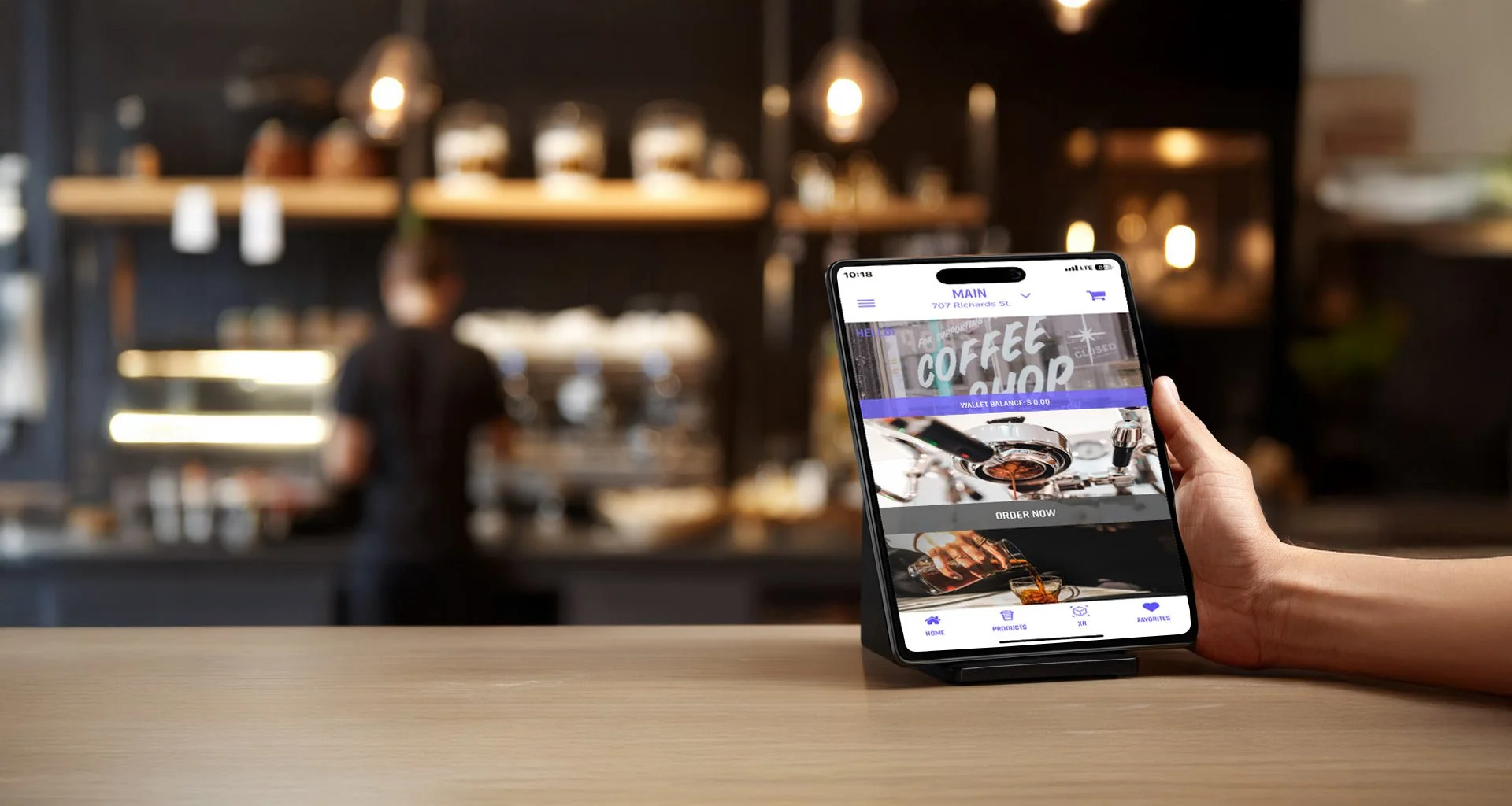
Let Guests Order, Let Staff Create, Watch Speed and Efficiency Increase
Run your front counter your way. With Savor Live you can switch the same device between a staffed Cashier POS and Order Display System (ODS) or a Self-Order Kiosk. No unnecessary additional screens. No extra clutter. During busy waves, let customers build and pay for their own orders while your team focuses on making coffee. When you want hands-on service, flip back to cashier mode in seconds.
A dual-mode setup speeds up lines and cuts mistakes. Guests see all options on screen, pick the modifiers they want, and confirm before paying. Your bar and kitchen hear fewer shout-backs and remakes decrease.
One device that powers both the Cashier POS/ODS and Self-Order Kiosk
Fast switch for peak times and events
Clear prompts for sizes, milks, and add-ons
Fewer errors because guests confirm their own order
How It Helps During Peak Times
When the line stacks up, every second counts. The Self-Order Kiosk absorbs quick orders while the cashier handles questions and complex tickets. That balance raises orders per hour without adding staff while mitigating lines during high-volume periods.
Self-Order Kiosk catches orders for customers on the go who want to skip the line, or customers who are not conveniently seated by the barista counter
Cashier POS supports new guests and special requests
Shorter waits reduce walkaways at the door
Baristas have more time to help complete orders and manage the flow and cleanliness of the cafe instead of being stuck at the till
Give Control To Guests, Keep Control As Staff
Customers enjoy placing their orders at their own pace and on their time. Your team keeps the reins with smart controls and simple oversight.
Lock screens reduce issues of guests accidentally closing out of the Self-Order Kiosk
Set daypart menus to keep screens simple at rush
Utilize product or order comments to track special requests or table numbers
Expo view on the Order Display System confirms each order before pickup
Fewer Errors, Smoother Handoff
Mistakes slow everything. The Self-Order Kiosk user experience makes customizing orders clear, The Cashier POS mirrors the same flow so tickets are uniform.
Modifiers shown in big, readable groups
Orders display and print in the appropriate station: espresso, cold bar, or kitchen
Labels and order numbers match the pickup shelf
Instant reprint if a sticker goes missing
Easy voids and refunds for order adjustments and customer satisfaction
Fast Payments, Higher Tips
Both modes accept tap, chip, and swipe. On-screen tip prompts help your team earn more without slowing checkout.
Tap to pay in Cashier POS and Self-Order Kiosk flows
Rewards applied utilizing the email customers used to sign up for the app
Tip options shown before payment, not after
Option for digital receipts to be sent via text or email
Setup Tips That Pay Off
Placement and layout matter more than fancy hardware. Treat the device like a lane that guides the crowd.
Bolt the POS stand to the counter and add a swivel
Put the Self-Order Kiosk stand near the entrance with an Order & Pay Here sign
Keep a second iPad and card reader for line busting when needed
Check glare and reach at morning and afternoon sun
What To Track
Increase speed, efficiency, and customer satisfaction while continuing to fine-tune. Small tweaks add up fast.
Orders per hour by app, SoftPOS mode, and daypart
Average ticket size: Cashier POS vs Self-Order Kiosk
Remake count and top error types
Walkaway rate at peak windows
Peak times to pull out the Self-Order Kiosk or add a second Cashier POS